
It takes a customer one visit to a locked door to leave a one-star review — and they will mention the hours. “Google said they were open.” Of every setting on your profile, Google Business Profile holiday hours are the easiest to forget and the most expensive to get wrong, because the customers you lose this way do not drift off. They drive to you, find you shut, and buy from the competitor whose hours were right.
The good news: setting them properly is a five-minute job called special hours, and you mostly need to do it a handful of times a year. This article covers what special hours are, when to set them, and the mistake Google specifically warns about — leaving holiday hours unconfirmed. One more reason to care:
holiday periods are when searchers are least forgiving and least familiar — visitors, travellers, and people buying under time pressure, all relying on your
listing because they do not know your shop the way regulars do.
The short answer
Holiday hours on Google are set with special hours: dates where your opening times differ from the regular week. Setting them takes about five minutes per date, they replace your normal hours only for that day, and for official holidays you should confirm your hours even when they are unchanged.
What special hours are (and what they are not)
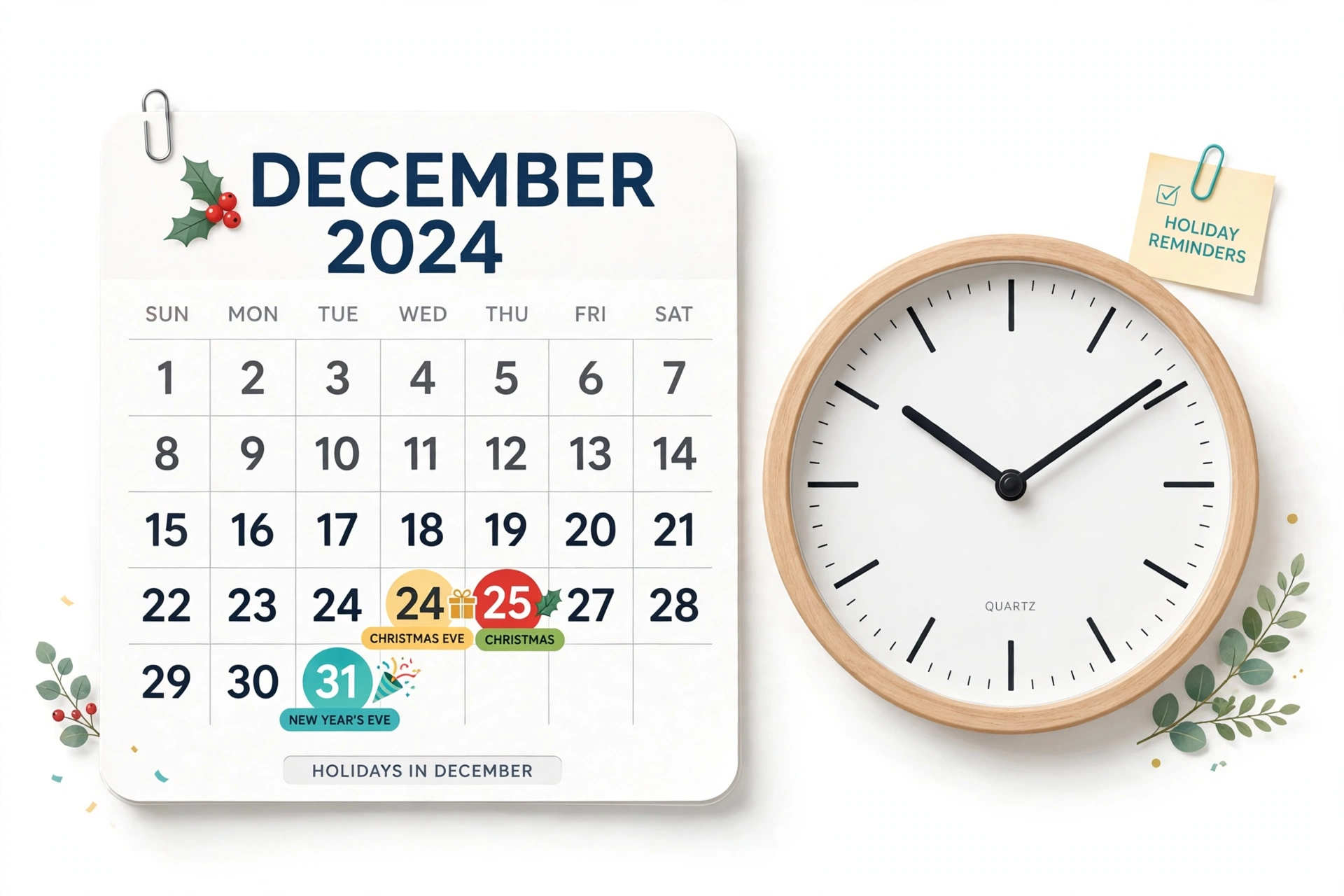
Special hours are dates on which your opening hours differ from the regular week — public holidays, seasonal closures, one-off late openings. On those dates, the special hours replace your regular hours in search and Maps. They do not change your normal schedule, and they expire on their own once the date passes.
Google’s guidance on this is plain and worth following exactly: for official holidays, confirm your hours even if they are unchanged. If you leave a holiday unconfirmed, Google may show customers a warning that the hours might differ for the holiday — a small yellow flag of doubt, on the exact day a customer is deciding whether to make the trip. A business that confirms “open as usual” removes the doubt; a business that says nothing keeps it.
Treat hours as part of your general profile accuracy, the way my Google Business Profile audit checklist does — a detail checked on schedule, not rediscovered in a panic each December.
The worked example: the bakery and the locked door
An illustrative example. A bakery keeps normal hours showing through a public holiday on which it is actually closed. Three things happen, in order:
- Morning: customers search, see “open,” and travel. Two arrive at a locked door.
- Midday: one of them, annoyed and not wrong, leaves a one-star review: “Says open on Google, completely shut, wasted journey.”
- Afternoon: the customers who searched later see the same wrong hours — but now with a fresh one-star review on top.
The following holiday, the same bakery spends five minutes setting special hours marked closed for the date. Searchers see “Closed for the holiday” and simply plan around it. No journeys wasted, no review, and several customers come the day before instead — because clear closure information is also a prompt to buy early. Five minutes, once a season, is exactly the kind of small recurring job that a simple profile checklist exists to catch before it costs a review.
How to set special hours
The routine, without inventing steps: open your Business Profile, go to your business information and the hours section, and find Special hours. Add each upcoming holiday date, then either set the hours for that day or mark the business closed for it. If your hours on a holiday are the same as usual, still confirm them — that confirmation is what removes the “hours might differ” warning. Check the result on your public listing a day later, the way a customer would see it.
Build it into your calendar: the moment you decide your holiday schedule — staffing, stock, closures — the profile update happens the same day, not the week after. Owners who run their profile updates on a monthly rhythm rarely miss this; it is one line in the monthly local marketing routine, and it can also ride along with a seasonal profile post, whose value is discussed in my article on Google Business Profile posts.
Make it a twice-a-year habit, not a December scramble
The businesses that never get caught out do not have better memories; they have two fixed appointments. Appointment one, early in the year: sit down with the full calendar — public holidays, your annual closure, the seasonal rushes and the quiet weeks — and enter every special-hours date you already know. Most businesses can cover eighty percent of the year in one fifteen-minute sitting. Appointment two, a month before your busiest season: re-check what you entered against the final staffing decisions, because holiday plans change between January’s intentions and November’s reality. Two honest refinements make the habit stick. First, set the special hours the day the decision is made, even mid-year — a closure decided in June belongs in the profile in June, while it is still news. Second, after each holiday, glance at whether the dates cleared properly and your normal hours are showing again; special hours expire by design, but a thirty-second check is cheaper than discovering in February that last year’s closure is somehow still greeting customers. None of this is strategy. It is housekeeping — the kind that quietly protects every review you have earned.
The dates people forget
Public holidays are the obvious ones. The expensive misses are usually the others:
- The days around the holiday — early closing on the eve, late opening the day after.
- Annual closures — the stock-take day, the family holiday fortnight, religious observances that shift dates each year.
- One-off events — the roadworks week with reduced hours, the refurbishment weekend.
Any date your hours differ from the printed week belongs in special hours, even if it is not a “holiday” at all. And if you manage profiles for several clients, one shared holiday calendar — checked monthly — is the difference between a system and five separate surprises; mine lives inside my profile management routine for exactly that reason.

Questions owners ask next
What happens if I leave a holiday unconfirmed?
Google may show customers a warning that your hours might differ for the holiday — a small yellow flag of doubt on the exact day a customer is deciding whether to make the trip. Confirming “open as usual” removes the doubt entirely. Saying nothing keeps it, and holiday searchers — visitors, travellers, people under time pressure — are the least forgiving audience you have.
Do special hours change my regular hours permanently?
No. Special hours replace your regular hours only on the dates you set, and they expire on their own once the date passes. Your normal week is untouched underneath. It is still worth a thirty-second glance after each holiday to confirm the dates cleared properly and your regular hours are showing again.
Which dates do owners most often forget?
Rarely the public holiday itself — the expensive misses are the days around it: early closing on the eve, late opening the day after, the annual stock-take or closure fortnight, and one-off events like a refurbishment weekend. Any date your hours differ from the printed week belongs in special hours, even if it is not a “holiday” at all.
A customer left a one-star review saying we were shut when Google said open. What now?
Reply calmly and specifically: apologise for the wasted journey, state the correct hours, and do not argue about whose fault the listing was — future readers are judging your response, not the mistake. Then fix the cause the same day: set or confirm special hours for every upcoming date in the next sixty days, so the next holiday searcher sees the truth before travelling.
What to do next
Look at the next sixty days, list every date your hours will differ — or might be assumed to differ — and set or confirm special hours for each one today. Five minutes now is cheaper than one locked-door review. If you keep client profiles on a routine and want hours, posts, and reviews organised in one place, see my Local Alchemist AI page. It needs your own hosting and your own API keys, and its AI output needs a human review before anything is published.
Disclosure: the page linked above contains an affiliate link. If you buy through it, I may earn a commission at no extra cost to you.