
Opening a second branch is the best problem a local business can have — right up until Google gets involved. Add a second location to Google Business Profile the wrong way and you can end up with a duplicate listing, a suspended profile, or reviews split across two copies of the same shop. Add it the right way and the new branch starts life clean: its own profile, under the same account, findable from day one.
This article is about the legitimate new location. The opposite problem — extra listings for a business that only has one — is covered in my article on duplicate Google listings, and the two articles are deliberately cross-referenced: the line between “second location” and “duplicate” is exactly the line this
process walks.
The short answer
To add a second location to Google Business Profile, create one new profile for the real branch under the same account: its own address, its own local phone number, the matching primary category, then verify it — usually by video. One real location, one profile. Never create a profile for a place that does not operate.
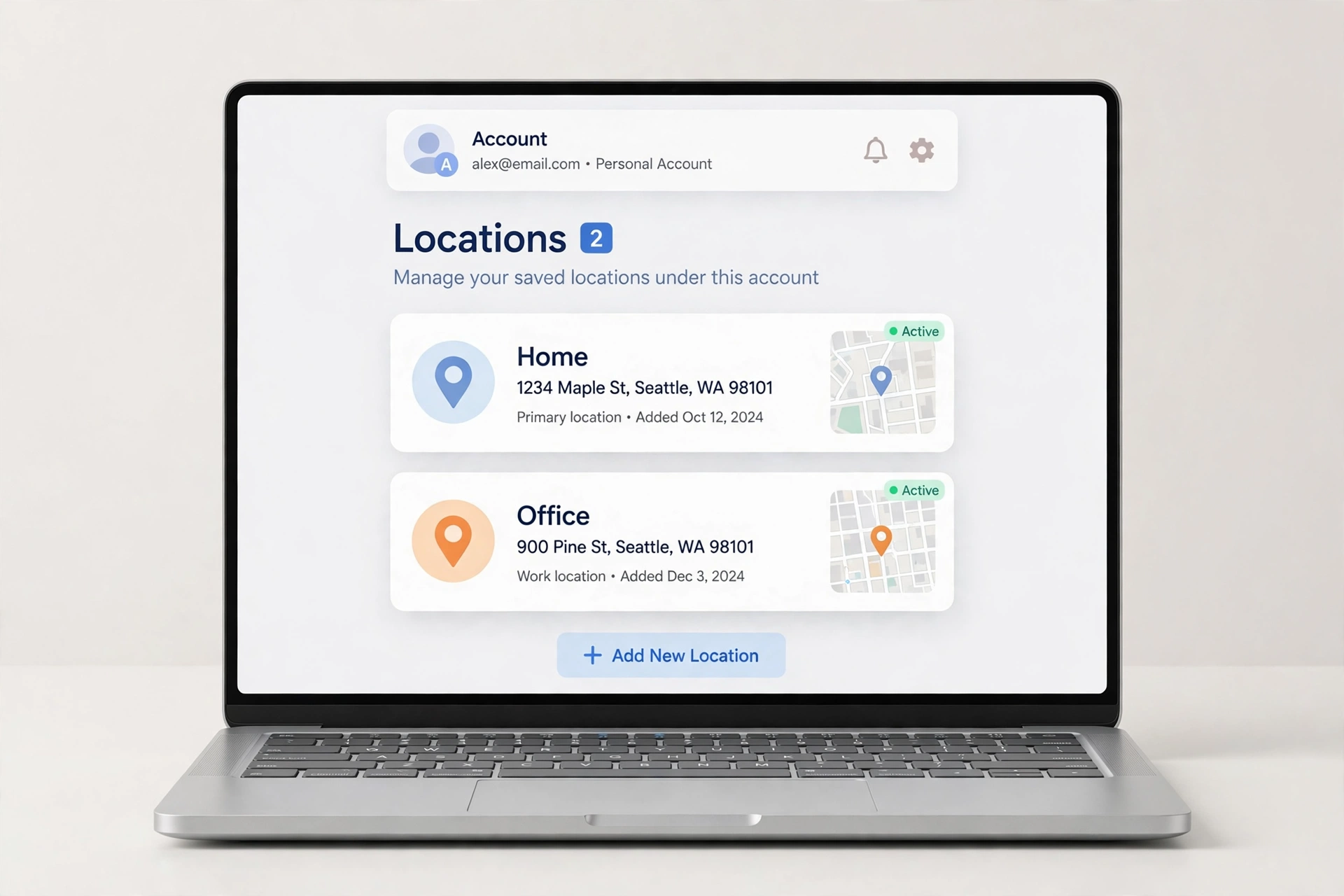
The one rule everything hangs on
A location profile must be a real place: a genuine branch, staffed during its stated hours, that customers can visit (or, for service-area models, a real base you operate from). What you may not do is create profiles for places that do not operate — no virtual offices, no P.O. boxes, no “locations” that are just a phone number and a hope. Google’s guidelines are firm on this, and profiles that break the rule are the ones that get suspended just as the new branch opens. One real location, one profile. Two real locations, two profiles. That is the whole rule. Keeping the rule straight as a business grows is a record-keeping job, not a memory job — the routine I use keeps each location’s details logged separately for exactly this reason.
The correct way to add it
From your Business Profile manager, use the option to add a location, and enter the new branch’s details as its own business: its real trading name (the same name as the first branch, if that is genuinely the name on the signage), its own street address, its own phone number — a local number for that branch is best practice — and the primary category that matches what that branch does. Then verify it, the way you verified the first; most new locations are verified by video.
Practical details that save pain later:
- Same account. Manage both locations under the one Google account or business group, so nothing is orphaned when staff change.
- Separate details, kept separate. Each location’s name, address, and phone must be exactly right for that location — the discipline my article on NAP consistency explains, applied per location rather than across the whole business.
- Its own website page, ideally. Point each profile at the page for that branch, so a customer lands on the right hours, the right parking notes, the right team.
- Photos of the new place. Not copies of branch one’s photos — real pictures of branch two, from opening week.
The moment most people create a duplicate instead
Here is the classic mistake: the owner searches for the new branch, does not see it yet (new profiles take time to appear), and creates another one “just in case.” Now there are two profiles for one new shop — a true duplicate, splitting reviews before the branch has even found its feet. The prevention is patience plus a note: record the date and time you created the location, and check for it by exact name over the following days rather than rebuilding it. If you are setting up locations for a client as part of a wider service, a structured profile routine keeps creation dates, verification states, and checks from blurring together across branches.
The worked example: a coffee shop opens branch two
An illustrative run-through. A coffee shop with a strong first profile — 300+ reviews, complete details — opens a second branch across town.
- Week 1: The owner adds the location under the same account: same trading name, the new street address, a local number for the new shop, the same primary category, hours matching the new branch’s actual rota. Verification is completed by video the same week.
- Week 2: Branch two’s own photos go up — the new counter, the new team, the street outside. Its website location page is linked. The owner resists the urge to copy branch one’s description word for word; the services match, the details are the new shop’s own.
- Month 1: Reviews begin from zero, because reviews belong to the location that earned them — they cannot and should not be transferred from branch one. The shop asks its new customers the same honest way it always has, with no incentives and no filtering of unhappy customers (both prohibited).
- The check: searching the branch’s name shows exactly one profile per location. That, and not the review count, is the first month’s real success measure.
What stays shared between locations — and what never does
Owners new to multi-location profiles usually ask the transfer question in three forms, so here are the three answers. Reviews never transfer. Branch one’s 300 reviews stay with branch one; the new branch earns its own, and any service offering to move reviews between listings is offering something Google does not allow to exist. Standards do transfer. The same completeness, the same reply habit, the same photo discipline — applied per profile — are what make the second location look like the same business customers trusted at the first. Identity stays consistent, details stay local. The trading name, logo, and way of working are shared; the address, phone, hours, and team photos must be each branch’s own. Blurring that line — one set of details stretched across two pins — is how a legitimate second location starts to look, to Google and to customers, like the duplicate problem this article exists to avoid.
After both locations are live
Run each profile on the same monthly rhythm: hours and holiday hours per location (they may differ), photos per location, reviews answered per location. A full sweep for either branch uses the same Google Business Profile audit checklist — run it per profile, not per business, because each listing is judged on its own details.

Questions owners ask next
Can I transfer my first branch’s reviews to the new location?
No — never. Reviews belong to the location that earned them; branch one’s 300 reviews stay with branch one, and the new branch starts from zero and earns its own. Any service offering to move reviews between listings is offering something Google does not allow to exist. What transfers is the standard: the same completeness, reply habit and photo discipline, applied per profile.
I created the new location but it is not showing yet. Should I create it again?
No — that urge is exactly how duplicates are born. New profiles take time to appear; creating a second one “just in case” leaves two profiles for one shop, splitting reviews before the branch has found its feet. Record the date and time you created the location, then check for it by its exact name over the following days instead of rebuilding it.
Can both locations share one phone number and one website page?
Keep the details separate where you can. A local number for each branch is best practice, and each profile should ideally point at that branch’s own website page — the right hours, parking notes and team. The trading name, logo and way of working stay shared; the address, phone, hours and photos must be each location’s own. One set of details stretched across two pins is how a legitimate second location starts to look like a duplicate.
Can I use a virtual office or a P.O. box for the new branch?
No. A location profile must be a real place: a genuine branch, staffed during its stated hours, that customers can visit — or, for service-area models, a real base you operate from. Profiles for places that do not operate breach Google’s guidelines, and they are the ones that get suspended just as the new branch opens.
What to do next
If branch two is real and opening, add it once, verify it, and write down the date you created it — then let it appear in its own time. If you manage profiles for growing clients, the system I use to keep each location’s setup, reviews, and checks organised separately is on my Local Alchemist AI page. It needs your own hosting and your own API keys, and its AI output needs a human review before anything goes live.
Disclosure: the page linked above contains an affiliate link. If you buy through it, I may earn a commission at no extra cost to you.